Putting together slick multimedia packages with Videolicious
The iOS app Videolicious was launched a couple of years ago with the idea of allowing you to quickly create multimedia stories on-the-hoof. Last week journalism and technology website Poynter revealed The Washington Post asks journalists without multimedia backgrounds, to use the app.
How it helps you
This app is great for putting together quick packages whilst out in the field, press conferences, Marches or gigs. In Poynter’s demo Andrew Beaujon uses it from a technology and journalism conference.
Once you're happy with your piece, you have the option to add licence free music and even filters. If you upgrade from the free version you can add licensed music and logos to make your video more professional. You then have the option of sending to YouTube or it can be shared directly via Videolicious’ own player and dashboard.
In practice
I created a quick dispatch based on an event I covered last week. It was relatively quick to put together, although I retrofitted it and had to spend time downloading the elements to my phone. The app requires you to do your post in one take, so I had to do quite a few retakes. This arguably, is good practice but not so good if you’re used to sorting out problems in the edit suite. Also the camera is really unflattering (especially if your shooting from a desk upward) and I was much more comfortable with just audio. A good point is that you can upload a high or lo-res version depending on whether you’ve got good phone coverage or not.
My attempt to upload to my YouTube account didn't work.
Drawbacks
Surprisingly, even though it’s a few years old, Videolicious does tend to crash. But then my iPhone is in need of an upgrade and it might deal better with images and video shot on the phone. I would have liked more of a chance to fix things retrospectively but the video can upload to a dashboard where potentially a multimedia editor could pick it up, check and re-edit if need be.
Summary
An app with real potential, but it needs practice. And possibly a recent smartphone.
Rating


Journalism Tech Review: Soo Meta
NOTE: Sooo Meta is sooo over.
History
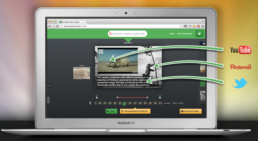
Soo Meta is a browser based editing tool which according to the website blurb allows you to create multimedia stories in minutes.
How it helps you
As well as marketers and educators, this tool was created with journalists in mind "Viewers expect more and more visual content. It’s time to deliver short movies, rich-media stories in your posts! Your audience will love it!" Like with Popcorn Maker the idea is that you enrich your original media by adding more multimedia frills. The video demonstrates how to use the Google bookmarklet to collect words, video and images from around the web, this has the added advantage of allowing you to cite your sources.
In practice
It took longer than "a few minutes" to get to grips with this tool. This is because the demonstration video only shows how to grab material via the bookmarklet, yet it doesn't show you how to install the bookmarklet. Once I'd worked that out I was well into my story. When I attempt to install in Chrome it crashed, I finally installed it in Firefox but was unable to view the video in this browser. I had to complete the edit in Chrome then add the images again (so it carried across the metadata) in Firefox. More than once whilst hopping about I crashed my browser and had to step back.
Drawbacks
Aside from the browser malfunctions, there's very little support for this tool and you are pretty much on your own when it comes to working out what's wrong. Even more unhelpfully if you do try and Google "Soo cut" (the name of the bookmarklet) you get a load of "soo cute" images and chintzy Google apps.
Summary
A great idea which appears simple but can be frustratingly tricky in practice.
Rating